
Section Scheduling
Overview
With the goal of helping academic departments create and maintain their list of course offerings each term, the Registrar’s office provides the following information, instructions and tools that departments can use to build their schedule of classes.

Development of the USC Schedule of Classes
The development of the USC Schedule of Classes represents a joint effort between academic departments and the Registrar’s office.
Each academic department must determine which courses to offer in its schedule of classes for the fall, spring and summer terms. Scheduling coordinators must also enter course data in the university’s Student Information System (SIS).
The Registrar’s office establishes the deadlines for the production of the Schedule of Classes, collects the schedule data from all departments, reports the schedule data to the appropriate school dean, and assigns classrooms, if necessary. Schedule data and other important information for students, such as the Registration Calendar, is hosted on the Schedule of Classes website.
The Schedule of Classes Development Timeline
Scheduling Coordinators and the Registrar’s Office must meet several deadlines to produce the Schedule of Classes in time for students to plan their class schedules. The timeline begins several months before the first day of classes for each term. A list of these dates for the current and upcoming terms is provided in the table below.
There are two distinct periods in the schedule production timeline.
First period: Departments can add, change and delete any section using RNR.U.SCHEDULE. See the table below for section input and lockout dates.
| Event | Spring 2027 | Summer 2027 | Fall 2027 |
| Begin section input | 6/1/2026 | 9/21/2026 | 10/9/2026 |
| Section input restricted by Registrar’s Office | 7/27/2026 | 11/13/2026 | 1/5/2027 |
| Coordinators submit Curriculog form to add, change, or cancel sections | 7/28/2026 | 11/16/2026 | 1/6/2027 |
| Coordinators run final review of their entries by running the RNR.R.SECT.SUMM report | 9/14/2026 | 2/1/2027 | 2/22/2027 |
| Registrar sends email schedules to deans for review | 9/16/2026 | 2/2/2027 | 2/24/2027 |
| Schedule of Classes released | 10/5/2026 | 2/8/2027 | 3/1/2027 |
| Registration begins | 10/26/2026 | 2/22/2027 | 3/22/2027 |
No changes to general-use classrooms for academic sections are allowed after the Drop/Add period (after the first three weeks of a semester).
First Period: Upcoming semester for which you can submit a Curriculog Section Scheduling Form:
- Fall – Late October through early January
- Spring – Early June through early August
- Summer – Late September through late November
Second period: Departments lose the ability to add, change and delete sections in RNR.U.SCHEDULE (unless the department owns the respective classroom space). During the second period, departments may request additions, changes and cancellations of sections by submitting requests via Curriculog.
Second Period: Upcoming semester for which you can submit a Curriculog Section Scheduling Form:
- Fall – Early January through Mid-December
- Spring – Late July through Mid-May
- Summer – Late November through Mid-August
| School | Course scheduled in a general-use classroom? | Able to Add / Change / Delete in SIS after deadline | Must submit Curriculog Form for additions / deletions |
| Dornsife | No
Yes |
No
No |
Yes
Yes |
| Non-Dornsife | No
Yes |
Yes
No |
No
Yes |
‘Room Change Only’ Requests
Please email “Room Change Only” requests to classroom.scheduling@usc.edu.
This includes sections without room assignments and room changes. Please include the term, course prefix/number, section number, estimated enrollment and the preferred room, if any.
USC Departments and Recognized Student Organizations
For day/time/room changes or cancellations, please email the event name, 13-digit reservation confirmation number, date, time, and assigned room information to classroom.scheduling@usc.edu.
Creating a Department’s Schedule of Classes
Scheduling coordinators are responsible for entering section and course data in SIS. They should meet with department chairs before the production timeline begins and use the previous year’s Schedule of Classes to determine which existing courses the department will offer.
Coordinators should also consult with department chairs to determine if faculty wish to offer any Special Topics courses (499s and 599s) and if any courses have been approved by the Curriculum Office.
Since courses offered in the fall and spring semesters largely remain constant, the Registrar’s Office conducts a “roll-over” of the previous year’s schedule to make the data entry process easier for academic units. In other words, coordinators do not have to create their schedules from scratch each fall and spring.
Contact Hours
Per the “general formula for contact hours” reference below, 12.5 hours of contact are required per unit. RNR.U.SCHEDULE will inform the scheduling coordinator if a section does not have sufficient instructional time to meet the university’s contact hours requirement.
The system calculation is based on the number of hours for the lecture section. Scheduling a discussion, lab or quiz section can supplement the shortage of contact time for the lecture. If a discussion, lab or quiz section has already been scheduled to accompany the lecture, please disregard the system message.
General formula for contact hours:
Courses must meet for a minimum of one 50-minute session per unit per week.
For a 1-unit, 15-week course, the minimum contact hours for the semester are 750 minutes or 12.5 hours.
2-unit, 15-week courses: 1500 minutes or 25 hours
3-unit, 15-week courses: 2250 minutes or 37.5 hours
4-unit, 15-week course: 3000 minutes or 50 hours
Minimum Contact Hours
The contact hours listed are the minimum required to meet the university standard. Ensuring that your courses meet these minimums may expedite the curriculum review process. The Contact Hours Table reflects the majority of possible course designs, though not all. For those not listed, please refer to the contact hours formula above.
Notes
- A 1-, 2- or 3-unit class must have at least the equivalent number of 50-minute contact hours each week.
- A 4-unit class may have only three (3) contact hours (but no fewer), if the department provides a rationale explaining the discrepancy (for example, a larger than average amount of reading or other assignments). If departments do not provide this rationale, the subcommittee may determine on its own that assignments look sufficiently extensive, or it may defer the course until a justification is provided for the reduced contact hours.
- The required hours per day may not always match available scheduling blocks. In such cases, departments are advised to use separate discussion sections or labs to supplement the shortage in contact time.
Requirement for Out-of-Class Student Work
In addition to in-class contact hours, all courses must also meet a minimum standard for out-of-class time, which accounts for the time students spend on homework, readings, writing and other academic activities. For each unit of in-class contact time, the university expects two hours of out-of-class student work per week.
Class Scheduling Blocks
The standard days and times for which courses may be scheduled are listed on the second page of the “Class Scheduling Modules” pdf. Each scheduling block is assigned a code, as indicated in the left-handlefthand column of the table. For a visual representation of these blocks, please refer to the first page of the pdf.
If departments prefer to use general-use classrooms, we strongly recommend that they follow the standard instruction day/time modules to maximize the utilization of general-use classroom space.
Note that any class that meets for three (3) hours or more once a week must start at 2:00 PM or later. They may never begin before 2:00 PM.
The following class times are scheduled based on room availability:
2:00 PM – 4:50 PM; 3:00 PM – 5:50 PM; 4:00 PM – 6:50 PM, etc.
Note: All classes must end no less than 10 minutes before the hour or half-hour.
Classroom Information
Please find the classroom photos and detailed information, such as capacity, furniture, technical equipment and more in Room Finder. If you have any questions about the technical equipment available in general-use classrooms, please contact ITS Learning Environments at (213) 821-6601 and/or spaces@usc.edu.
Hourly Section Scheduling Spreadsheet
Purpose
This tool supports the equitable use of general-use classrooms and helps reduce scheduling conflicts by promoting a more balanced distribution of classes. It is designed to help academic departments evaluate how evenly their course offerings are distributed throughout the week and across standard days and times.
How to Use the Scheduling Spreadsheet
- Enter Course Counts
For each day of the week (Monday through Friday) and for each listed time range (e.g., 8:00 – 9:00 AM, 9:00 – 10:00 AM, etc.), departments should enter the number of courses they offer during that specific slot. - Evaluate Distribution
Once all data is entered, departments can review the totals to assess whether their courses are evenly scheduled:- Across all five weekdays (Monday–Friday)
- Across all standard hours (typically 8:00 AM to 5:00 PM)
- Adjust Days and Times as Necessary
If any time blocks or days are overloaded while others are underutilized, departments can use this information to rebalance their schedule for better classroom usage and improved student access.
The Standard University Session
Most fall and spring courses at USC are scheduled in the university’s main Session 001, provided they meet the following criteria:
- They’re offered within the university’s established Academic Calendar.
- They’re taught at USC facilities.
- They do not carry higher or lower tuition rates.
Non-Standard Sessions
If a course falls outside these parameters, it should be scheduled through a “Session Request.” Refer to the Session Request Guidelines for more information.
Financial Aid Considerations for Non-Standard Sessions
Scheduling coordinators should understand the potential financial implications of offering courses in non-standard sessions. An incorrectly scheduled session may mean the loss of financial aid eligibility for students in the program, which in turn can result in the loss of revenue for the academic department. Therefore, scheduling coordinators are required to take the “Financial Aid Eligibility Considerations in Course Scheduling” course in Trojan Learn.
To access the course, please log in to Trojan Learn and enter “Financial Aid Eligibility Considerations in Course Scheduling” in the search engine.
Once the coordinator has successfully completed the course, they can then review how to request a session. Refer to the “Session Request Guidelines” for more information, and then submit the “Session Request” form.
Summer Courses
Coordinators must create each section for the summer schedule. As the timeline indicates, coordinators have at least six weeks to input section data in SIS before the Registrar’s Office restricts access (unless the department owns the classroom space involved).
Using SIS
FDM Fields in RNR.U.SCHEDULE (SIS) Page 3
General Information about RNR.U.SCHEDULE Page 3 (tuition revenue distribution fields):
SIS Page 3 of RNR.U.SCHEDULE (tuition revenue distribution) now requires Workday FDM fields instead of “GL” and “Object Code” fields. The FDM fields in SIS:
- “GL Account” has been replaced with “PPGG” (“Project, Program, Gift, Grant”), “Cost Center” and “Company.”
- The “Object Code” has been replaced with “Ledger Account” and/or “Spend/Revenue Category.”
These fields will roll over for the existing sections in the future. The existing records should have the new FDM fields populated. The “GL” and “Object Code” are legacy fields and are display-only.
For new lecture sections (C, CD, CL), these fields will need to be manually entered.
Your Senior Business Officer (SBO) should be able to provide the information you need to properly populate the new fields on Page 3 of the scheduling system.
Section Scheduling
The “Section Scheduling” form on Curriculog streamlines the process of scheduling course additions, changes and cancellations. Curriculog proposals are to be filled out by scheduling coordinators and are automatically routed for the appropriate approval process.
Users can track the status of their requests and are also immediately notified via email when a request has been approved or needs modification.
For detailed instructions on submitting a Section Scheduling form on Curriculog, please see the “SSF User Manual.”
Section Scheduling Tips
We strongly recommend that you download your SECT.SUMM before entering new sections or updating current ones. Your SECT.SUMM will list the sections that were rolled forward from the corresponding semester of the previous academic year. (For example, spring 2025 courses will be rolled forward to spring 2026.)
For any sections that remain the same from year to year (day/time/estimated enrollment), the general-use classrooms assigned to them will remain the same for the current semester.
Changing or Unpublishing Sections
When you unpublish a section with a general-use classroom assignment, the room will automatically be removed. To keep the room, please email the list of sections and their room assignments to classroom.scheduling@usc.edu before unpublishing any sections. Classroom Scheduling will unpublish the sections for you and re-assign the general-use classroom.
Changing Modality (Mode of Instruction)
“Modality” refers to how the course is delivered to students. Modalities can include online, hybrid, or in person.
How to change the modality in SIS:
ONLINE: Enter “ONLINE” in the “Assigned Room” field on Page 1 or enter
“A” in the “DL” field on Page 2 of RNR.U.SCHEDULE.
- Create your ONLINE sections with Session Code 060 to avoid a Transportation Fee.
- Refer to “Section Scheduling in RNR.U.SCHEDULE and Transportation Fees” below.
HYBRID: Enter “B” in the “DL” field on Page 2 of RNR.U.SCHEDULE.
IN PERSON: Leave the “Assigned Room” field on Page 1 and the “DL” field on Page 2 blank in RNR.U.SCHEDULE.
Changing online courses to in-person courses for the current semester:
Double-check any online sections that were rolled over from the previous year and make any necessary updates to their modality.
- Remove “ONLINE” from the “Assigned Room” field on Page 1 of RNR.U.SCHEDULE.
- Add your preferred rooms/buildings to the “PrefRoom” field on Page 1 of RNR.U.SCHEDULE.
- If you’d like a general-use classroom to be assigned to your newly added sections, please leave the “Assigned Room” field on Page 1 of RNR.U.SCHEDULE blank.
- A general-use classroom will not be assigned to a section if the “Assigned Room” field indicates “OFFICE.” If a general-use classroom is required, please remove “OFFICE” from the “Assigned Room” field and leave it blank.
- Review the specifications for general-use classrooms.
Please note that published courses have priority over unpublished courses in receiving a general-use classroom assignment.
Section Scheduling in RNR.U.SCHEDULE and Transportation Fees:
|
Modality |
Room Assignment |
Session Code |
Campus Location |
Transportation Fee Applies |
|
Online |
ONLINE |
060 |
OFC (Off Campus) |
No |
|
Hybrid |
ONLINE & Classroom |
Not 060 |
UPC, HSC |
Yes |
|
In-Person |
Classroom, TBA, OFFICE |
Not 060 |
UPC, HSC |
Yes |
|
In-Person |
OFF-CAMPUS |
Not 060 |
OFC (Off Campus) |
No |
Instructions for Uploading Syllabi and Bios
Faculty and staff are encouraged to publish their course syllabi online in the Schedule of Classes. Granting access to these syllabi allows instructors to communicate their expectations and gives students valuable course information prior to the start of the semester.
-
Log in to USC’s Simple Syllabus website with your USC NetID/Single Sign-On.
-
On the “Home” screen, you will see your sections in the “To Do” list. Click on the “Edit” button.
- If you do not see your sections or you receive an error message, contact your department’s scheduling coordinator to make sure your name is added to your course sections in SIS (p.4 of RNR.U.SCHEDULE).

-
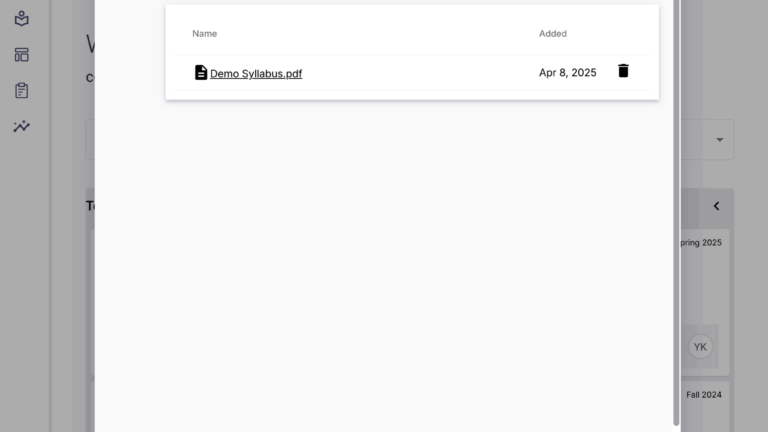
In the pop-up window that appears, click on the “Upload” button to select your document from your computer.

-
Upload multiple documents with the “+Add” button. Click on “Submit” when you have queued all the documents you wish to upload.
-
Wait for the confirmation animation. The pop-up window will close automatically.
Notes
- By default, uploaded syllabi are visible only to USC students, staff and faculty.
- Currently, a syllabus can be uploaded only by the faculty member assigned to that section.
- Many document types are supported, including PDFs, Word documents, and JPEGs.
Help
If you have questions or need further assistance, you can find additional training and support at the Simple Syllabus Support website or file a support request with ITS.